





Introduction
Configuring secure, organized team workflows in WordPress requires role-based access control that is purpose-built for collaborative environments. NextlerAI Suite delivers this through a permission model that restricts sensitive system actions, knowledge base access, and workflow triggers according to each team member’s assigned role. This approach supports operational integrity, reduces the risk of unauthorized access, and aligns with the expectations of IT decision-makers and compliance officers seeking robust WordPress AI security.
With NextlerAI, team permission management is not an afterthought but a foundational feature. Administrators can define granular roles—such as content creator, editor, or workflow manager—each with carefully scoped access to AI-powered tools and knowledge bases. This ensures that only authorized users can initiate, modify, or trigger critical workflows, helping your organization maintain strict control over both content and automation routines.
NextlerAI’s permission model is deeply integrated with WordPress’s own user system, enabling seamless mapping between site roles and AI feature access. Each role in NextlerAI can be configured to allow or restrict actions such as accessing specific knowledge bases, launching workflow automations, or modifying AI-powered content suggestions. Permissions are enforced through built-in controls that validate user intent before executing sensitive operations. Administrators can audit access logs to monitor which users performed specific actions, supporting compliance and investigative needs. These mechanisms are designed to ensure that collaborative editing and workflow management remain efficient, while protected functions—like bulk content automation or confidential data handling—are strictly limited to approved roles.
Readers will learn how to configure and verify user roles, diagnose common permission errors, and support secure collaboration across distributed teams. The following guide goes beyond generic RBAC explanations, referencing documented features unique to NextlerAI Suite’s integration with WordPress. You will gain actionable steps, error-to-fix mappings, and practical decision criteria to optimize secure team collaboration and avoid pitfalls such as misassigned roles or overlooked permissions.
Continue for a structured, evidence-based approach to mastering role-based access and workflow security in NextlerAI.
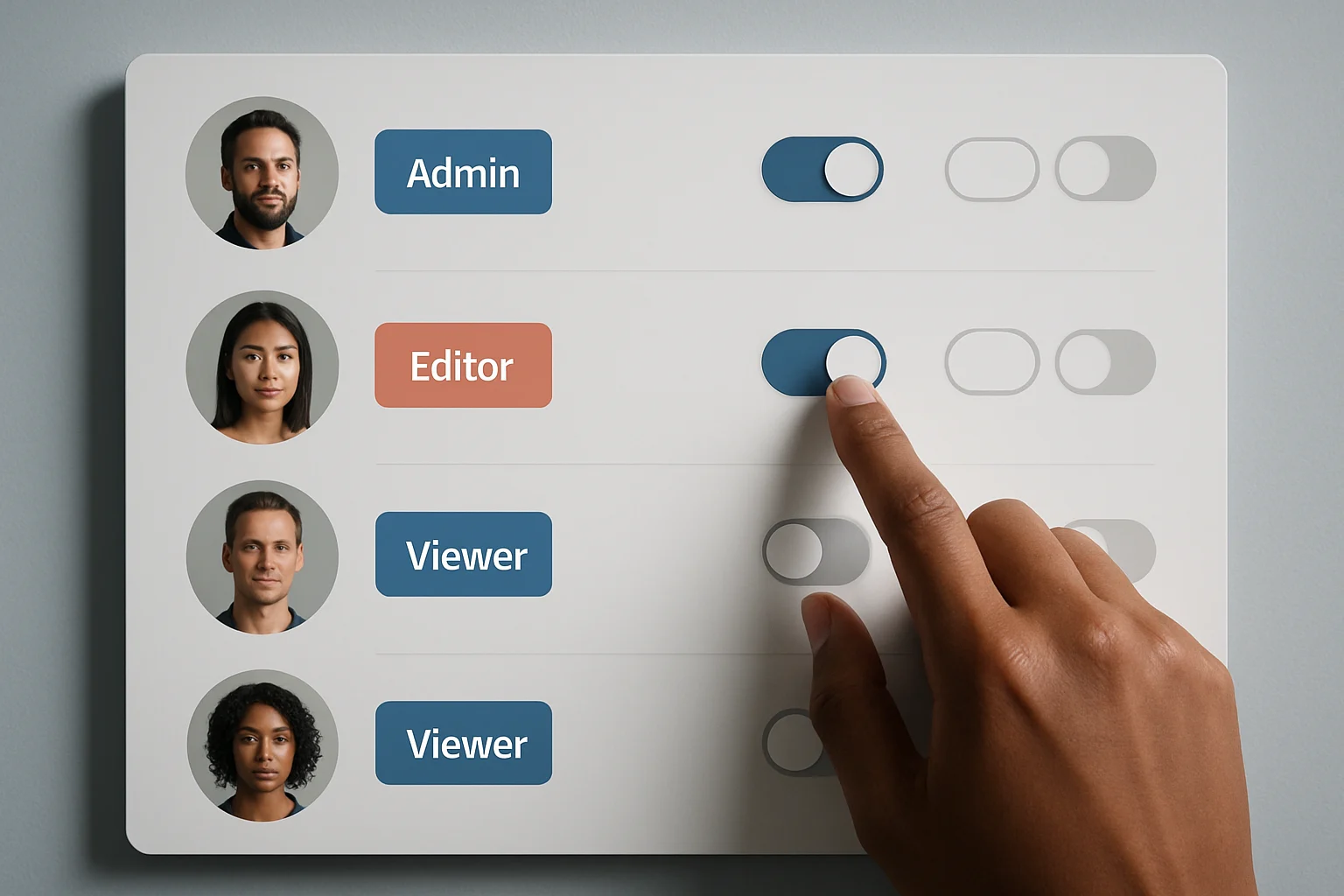
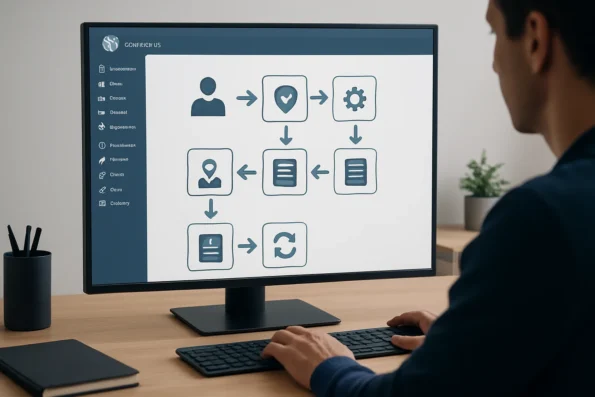
Visual summary of access control in NextlerAI Suite
NextlerAI Suite enforces a layered, role-based access control (RBAC) model tailored for WordPress environments. Unlike generic RBAC frameworks, NextlerAI maps permissions directly to workflow elements, ensuring each user’s access strictly aligns with their operational responsibilities. This model is designed for both security and productivity, enabling granular team permission management without sacrificing collaborative agility. NextlerAI Assistant’s granular team permissions provide a robust foundation for secure, collaborative workflows. Role-based access controls (RBAC) – Relevance AI Documentation documents the relevant background and implementation boundaries.
Layered Structure of Roles and Permissions
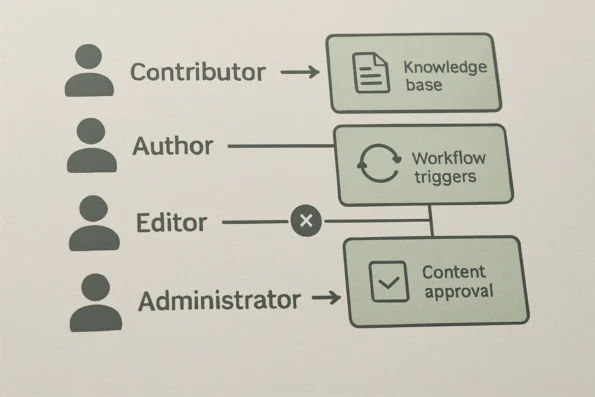
User roles in NextlerAI Suite are organized hierarchically. At the base are contributors and authors, who typically have permission to initiate predefined workflows but lack authority to modify knowledge bases or system triggers. Editors are granted elevated access, including oversight of workflow execution and review of content generated by NextlerAI Assistant. Administrators hold the highest level of authority, with unrestricted ability to configure permissions, assign or revoke roles, and alter workflow triggers. This hierarchy ensures that sensitive system actions, such as editing workflow triggers or managing knowledge base sources, are shielded from those without explicit trust, while still empowering contributors to participate in content creation workflows.
Visibility, Assignment, and Restriction of Actions
The visibility of features and actions within NextlerAI is strictly governed by assigned roles. For example, only users with editor or administrator roles can access sensitive workflow triggers or adjust knowledge base sources. Assignment of roles is handled within the WordPress user management interface, but restrictions take effect immediately in the NextlerAI Suite, blocking unauthorized actions at both the interface and API levels. Role assignments are dynamic, meaning alterations to a user’s role in WordPress are automatically reflected in their NextlerAI privileges, reducing administrative overhead while maintaining immediate enforcement of new boundaries.
Permissions Mapped to Workflow Elements
Permissions in NextlerAI are not generic toggles; they are mapped to concrete workflow elements such as knowledge base access, trigger configuration, and automation initiation. For instance, while contributors can launch AI-assisted drafts, only editors or administrators can approve, schedule, or publish outputs. This mapping ensures that operational boundaries are enforced at every workflow step, reducing risk of accidental or malicious misuse. The mapping mechanism leverages context-aware permission checks, meaning that each action—such as editing a draft, triggering an automation, or accessing team knowledge—triggers a real-time evaluation of the user’s current permissions before execution proceeds.
Collaborative Access Versus Protected Functions
NextlerAI distinguishes sharply between collaborative functions—such as shared access to knowledge base content for approved team members—and protected functions like workflow or system-level configuration. Collaborative actions are visible to permitted roles and logged for auditability, while protected actions are shielded behind explicit administrator or editor permissions. This separation supports secure team collaboration while maintaining robust boundaries around critical controls. Collaboration is facilitated through workflow-specific access grants, ensuring team members see only the content and actions relevant to their current projects. Protected functions are further isolated by backend enforcement, making circumvention attempts ineffective even with direct API access.
Built-in Controls to Prevent Unauthorized Actions
Unauthorized attempts to perform restricted actions in NextlerAI are intercepted by built-in controls, which provide clear, actionable error messages. These controls operate at multiple levels: interface warnings, backend validation, and permission-aware API endpoints. Administrators also have access to audit trails and diagnostic tools to investigate and remediate permission issues, supporting compliance and rapid troubleshooting. The enforcement mechanisms are continuously synchronized with user roles, ensuring that permission changes are reflected system-wide without delay. This architecture not only prevents accidental errors but also provides a defensible audit path for security reviews and compliance checks.
Visual summary: NextlerAI access control layers mapped to real workflow elements and role boundaries.
Key terms and mechanisms in NextlerAI’s permission model
Understanding NextlerAI’s approach to role-based access control requires a close look at its terminology and permission mechanisms. Within NextlerAI Suite, every access decision is grounded in clearly defined concepts that map directly to WordPress’s established user roles and extend them for AI-driven workflows and sensitive knowledge management. Editorial calendar automation in NextlerAI Publisher is governed by configurable role permissions, ensuring only authorized team members can manage topic assignments and scheduling within your WordPress environment. Role Based Access Control | CSRC documents the relevant background and implementation boundaries.
User roles and permissions in context
In NextlerAI, a user role aligns with WordPress’s native roles—such as contributor, author, editor, and administrator—but introduces additional granularity for AI-related functionalities. A permission is a discrete capability granted to a role, determining what actions a user can initiate or approve, from managing workflows to accessing organizational knowledge bases.
Content and workflow action boundaries
Permission boundaries in NextlerAI distinguish between content permissions—such as viewing, modifying, or publishing documents—and workflow action permissions, which involve initiating or triggering automated processes via the NextlerAI Assistant. These boundaries ensure that team members are not only limited to their editorial scope but are also restricted from accessing or triggering automation beyond their intended authority. For example, an editor may approve queued content but cannot reconfigure workflow triggers without explicit permission.
Relationship to WordPress user roles
NextlerAI’s permission model is tightly coupled with WordPress’s user management. Only users with WordPress administrator status can alter global permissions, access advanced troubleshooting, or modify workflow automation logic. This integration anchors team permission management in familiar controls, while extending them with AI-specific roles and boundaries tailored to the organization’s workflow needs.
Knowledge base segregation for sensitive content
NextlerAI enables knowledge base segregation, which means different teams can be granted access only to the knowledge bases relevant to their work. This is essential for protecting proprietary content, confidential FAQs, or customer service data. Administrators define which roles can view, edit, or train the assistant on specific knowledge sets, preventing accidental or unauthorized exposure of sensitive material.
Administrator versus non-administrator capabilities
Only administrators possess the authority to change global access settings, reassign roles, or recover from misconfigurations. Non-administrator users—including editors and contributors—operate within the permission envelope set by administrators. For example, a contributor may draft content and propose workflow actions, but cannot alter workflow structures or access restricted knowledge bases. This clear separation of responsibilities minimizes risk and enforces operational discipline.
Illustrative scenario: Deploying role-based access in a content team
Illustrative scenario: Imagine a WordPress-based content team preparing to launch a new editorial initiative using NextlerAI Suite. Security and workflow control are central from the outset. The team’s administrator starts by activating role-based access features within NextlerAI, following the documented assistant setup. This ensures only users with appropriate WordPress administrator rights can configure and assign roles, establishing a secure baseline for all subsequent permission controls. admin-level controls addressing privacy risks in NextlerAI deployments help enforce role-based restrictions and ensure your workflow remains compliant with sector-specific data protection requirements. NIST Special Publication 800-162: Guide to Attribute Based documents the relevant background and implementation boundaries.
Initial configuration and role assignment
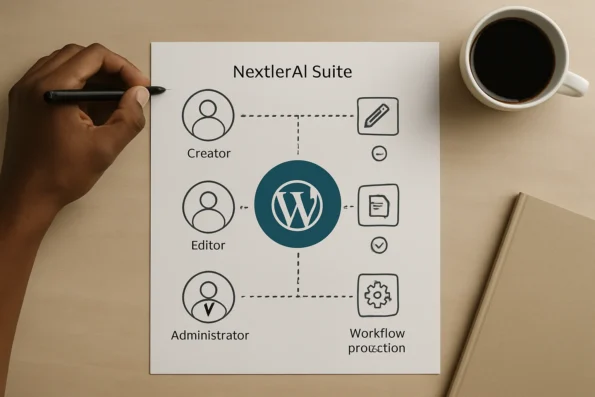
The administrator defines three core roles: content creators, editors, and administrators. Each is mapped to WordPress user roles, but further refined using NextlerAI’s own permission layers. Content creators receive access solely to content drafting modules. Editors are granted approval and publishing functions, but restricted from altering workflow triggers or knowledge base settings. Only administrators can modify workflow automation, manage sensitive knowledge bases, and adjust team permissions. This separation is enforced by NextlerAI’s built-in controls, which map every critical function to explicit role and permission checks.
NextlerAI’s permission system goes beyond WordPress defaults by allowing administrators to create custom permission sets within the suite’s dashboard. For instance, an administrator may establish a temporary reviewer role for guest contributors, providing them with limited-time access to draft content without visibility into editorial automation or team settings. The platform’s interface distinguishes these role boundaries visually, so users are immediately aware of their accessible functions. All assignments and permission scopes are logged in the NextlerAI audit trail, providing traceability for later reviews or compliance checks.
Workflow validation at each stage
To prevent misconfiguration and support compliance, the team validates access after each assignment. Content creators log in and confirm they see only drafting tools, with administrative and workflow automation menus hidden. Editors verify their permissions by approving a draft but are unable to alter workflow triggers or access restricted knowledge base entries. Administrators conduct a final sweep, testing access boundaries for every role, and confirming that unauthorized actions are blocked with clear system feedback.
NextlerAI’s real-time permission enforcement is evident during these checks: if a user attempts a restricted action, the system responds with contextual error messages and records the attempt for audit. Administrators can inspect these logs to ensure no unintended access is granted, and can make immediate adjustments if a gap is detected. This proactive validation ensures that even as permissions evolve, the content team’s security posture remains intact and auditable.
Collaboration with security by design
Collaboration is structured, not ad hoc. For example, when a new knowledge base is added for a sensitive product launch, only administrators can link it to the NextlerAI Assistant; editors and creators cannot view or modify its configuration. This reduces accidental exposure of confidential material. Workflow triggers, such as automated content review steps, are similarly protected—ensuring only those with explicit permissions can initiate, modify, or override automation. This design upholds the principle of least privilege throughout the content lifecycle.
Ongoing access review and adjustment
As team membership changes, the administrator uses NextlerAI’s permission diagnostics to audit access and reassign roles, maintaining alignment with organizational policy. Permission changes are logged and reversible, supporting both operational agility and compliance oversight. This enables rapid onboarding of new team members without compromising security or workflow integrity. Administrators can also schedule periodic audits using the suite’s built-in reporting tools, ensuring that dormant or outdated roles do not persist beyond their intended lifecycle. This contributes to a continuously updated security model that adapts to the evolving structure of the editorial team.
This scenario demonstrates that with NextlerAI Suite, role-based access control is not an endpoint but an embedded, continually validated foundation for secure team collaboration in WordPress environments.
Diagnostic steps for identifying and resolving permission issues
A methodical diagnostic process is essential when access or permission errors disrupt collaborative workflows in NextlerAI Suite. Each step below is designed to isolate the root cause and resolve issues efficiently, referencing NextlerAI’s official troubleshooting guidance and enforcing the need for administrator-level access throughout. Teams that require advanced collaboration and permission requirements can leverage NextlerAI Assistant to maintain strict boundaries around access to sensitive support content and customer service workflows. What is Azure role-based access control (Azure RBAC)? documents the relevant background and implementation boundaries.
- Confirm the affected account’s active status and assigned role.Start by verifying that the reported user account is active in WordPress and mapped to a valid NextlerAI role. Deactivated, deleted, or incorrectly assigned accounts are a primary source of denied access incidents. Check both the WordPress Users dashboard and the NextlerAI user mapping panel for consistency. If discrepancies are found, update the mapping immediately to reflect the intended permissions.
- Review the current role assignment and permission set.Check the user’s assigned role against the documented permissions table in NextlerAI Suite. Confirm that the user has explicit access to the workflow element in question—such as AI triggers, content publishing, or knowledge base editing—since permissions are not inherited automatically. Use the NextlerAI Suite’s role management interface to cross-reference individual permissions and check for recent changes that may have impacted access.
- Audit workflow triggers and protected actions.Examine which workflow triggers the user is attempting to access. NextlerAI enforces granular control over triggers and actions, so misaligned workflow permissions (for example, a contributor trying to initiate an editor-only trigger) will produce immediate access errors. Review the workflow builder’s trigger assignment logs and ensure that only the intended roles are mapped to sensitive actions.
- Validate permission propagation and test access boundaries.After any change to roles or permissions, use a secondary administrator account to log in as the affected user (or employ a staging environment) and attempt the restricted action. This checks that permission updates have taken effect and exposes any propagation delays or cache issues. Instruct the team to clear any local or server-side caches before re-testing, as stale permission data can temporarily mask or prolong issues.
- Examine system logs and recent audit trails for permission failures.Access the NextlerAI Suite logs to identify error codes, permission-denied events, or failed API calls related to the affected workflow. Audit logs will often pinpoint whether the denial came from role misassignment, revoked privilege, or a misconfigured workflow boundary. Focus on log entries timestamped within the problem window and correlate with any administrative changes recorded in the platform.
- Consult the official troubleshooting checklist for known error patterns.Reference the published troubleshooting master checklist to compare observed errors against documented failure modes. This step can quickly resolve common pitfalls, such as unreviewed batch changes or recent plugin updates that alter permission schemes. If a matching pattern is found, apply the prescribed resolution steps and retest user access.
- Escalate to a controlled reset or rollback if errors persist.If standard diagnostic steps do not restore correct access, consider a guided rollback of recent permission or workflow changes, as outlined in NextlerAI’s recovery procedures. Ensure all changes are logged, and only administrators execute resets to maintain compliance and traceability. Document the rollback steps and notify affected users once the system is restored to a verified, operational state.
Administrators retain sole responsibility for logging each diagnostic action and for securing audit trails throughout the investigation. This structured approach not only addresses immediate errors but reinforces system integrity by capturing evidence for future compliance reviews. Following these steps provides a direct, evidence-based route to resolving permission issues without compromising workflow security or auditability. If the issue cannot be traced to misconfiguration or user error, proceed to the next section for a detailed catalog of common mistakes and their practical fixes.
Common mistakes and fixes in NextlerAI access configuration
Configuring role-based access control in NextlerAI Suite can introduce vulnerabilities or workflow disruptions if common pitfalls are not carefully addressed. Accurate assignment and rigorous validation of roles and permissions are fundamental to maintaining both collaboration and strong security boundaries. editorial governance mechanisms and decision boundaries in NextlerAI’s automated briefing workflows support precise role assignment and permission checks at every stage of content planning.
Misassigned roles and their impact
One frequent error is misassigning user roles, such as granting editor or administrator privileges to team members who should only have contributor-level access. This can lead to unauthorized modification of workflow automations, exposure of sensitive knowledge bases, or accidental activation of high-impact triggers. Such oversights not only put operational data at risk but also compromise the integrity of collaborative processes, making it difficult to trace accountability if unwanted changes occur.
Incomplete permission reviews
Another common mistake is neglecting to conduct a full review of permissions after updates to team structure or plugin configuration. In NextlerAI, permissions are tightly linked to both user roles and workflow triggers. Failing to systematically review these assignments—especially after onboarding new users or modifying existing roles—can result in gaps where critical actions are left unprotected or, conversely, essential features are inadvertently restricted, impeding productivity.
Omitting access boundary validation
Teams sometimes finalize their setup without thoroughly testing each user’s access boundaries in real workflows. This oversight may leave permission errors undetected until a workflow fails or a sensitive function is accessed inappropriately. NextlerAI Suite’s permission checks are enforced at both the interface and API levels, but only a deliberate validation process can confirm these safeguards are correctly aligned with organizational policy.
Direct, actionable remedies
To correct these issues, administrators should promptly re-audit all role assignments and permission mappings. Guided rollback procedures—such as those outlined in official NextlerAI recovery documentation—allow for the restoration of prior secure states if misconfiguration is suspected. Administrator intervention is essential when permission boundaries have been compromised or when system-level functions require re-securing. Each corrective action should be logged for auditability and future reference.
Safe rollback and recovery procedures
Restoring secure access after a configuration error demands controlled rollback processes. NextlerAI’s recovery guides recommend that only users with verified administrator status initiate these steps, ensuring that restoration actions do not introduce further vulnerabilities. Safe rollback preserves workflow continuity and limits the risk of accidental data exposure or escalation of privilege.
Further resources for safe recovery
Teams are encouraged to consult NextlerAI’s official recovery guides for precise rollback and permission correction procedures. These resources provide stepwise instructions tailored to NextlerAI’s integration with WordPress and include safeguards for both routine and emergency access restoration.
Decision matrix: Selecting the right access level for each workflow
Choosing the proper access level for each workflow in NextlerAI Suite is central to maintaining both operational flexibility and system security. This matrix links real workflow types to the specific roles and permission settings supported by NextlerAI, while clarifying risk controls and the limits of automation by role. Each assignment is mapped to a concrete workflow trigger or responsibility, reflecting the documented structure of NextlerAI’s role-based model for WordPress environments.
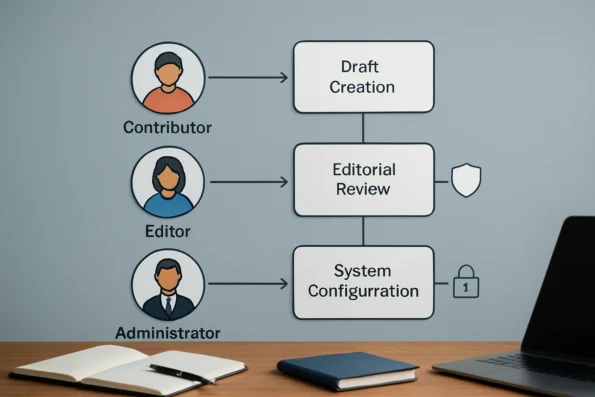
| Workflow Task | Recommended NextlerAI Role | Permission Scope | Workflow Trigger Alignment | Automation/Review Limit | Risk Mitigation Strategy |
|---|---|---|---|---|---|
| Content Draft Creation | Contributor | Create drafts, suggest edits | Manual or automated draft trigger | Requires editor or admin review before publish | Segregates unapproved content, limits exposure |
| Editorial Review and Approval | Editor | Edit, approve, schedule content | Triggered on draft submission or scheduled review | Cannot bypass admin-level publishing restrictions | Requires dual validation for sensitive workflows |
| Workflow Automation Trigger Management | Administrator | Configure and enable/disable triggers | Applies to all workflow automations | Full control; changes logged for audit | Audit log review, enforced rollback procedures |
| Knowledge Base Segmentation | Administrator | Assign knowledge sources, set visibility | Triggered on new source addition or update | Restricted to admin to prevent data leaks | Strict source assignment and periodic audits |
| Customer Support Automation | Author or Editor | Manage assistant responses, approve updates | Triggered by inquiry or update task | Requires review for new or sensitive entries | Role separation between content and system |
| System Configuration and Plugin Updates | Administrator | All settings, integrations, rollbacks | Triggered on system-level change request | Exclusive to admin; irreversible without audit trail | Mandatory administrator sign-off and documented change history |
This matrix is designed to clarify the separation of duties and automation boundaries within NextlerAI Suite. For each workflow, the assigned role reflects not only the minimum access required but also the built-in controls that enforce dual review, auditability, and safe rollback. Administrators are required for all actions involving system configuration, workflow automation triggers, and sensitive knowledge base management. Editors hold authority over content review and scheduling but remain subject to administrator-imposed restrictions. Contributors are purposefully limited to content creation, ensuring that sensitive actions always require explicit review. This structure directly supports WordPress-integrated permission management, aligning operational needs with defensible, traceable risk controls.
In practice, NextlerAI’s implementation of these access levels is tightly bound to workflow triggers and event-based automation settings. When an administrator configures workflow automation triggers, the permissions logic checks both the user’s assigned role and the workflow context, preventing unauthorized changes at the trigger and execution level, as detailed in NextlerAI’s official documentation (nextlerai.com). For example, when a new knowledge source is added, the system restricts visibility settings and assignment options exclusively to administrators, ensuring that sensitive data cannot be exposed or modified by unauthorized users. Automated processes—such as draft creation or content scheduling—are always subject to the permission boundaries established in this matrix. Editors can approve or reject drafts, but cannot alter system-level triggers or knowledge base configurations, while contributors cannot bypass editorial review. Every workflow trigger, from content automation to system configuration, is mapped to a specific access threshold, enforced by both the WordPress role model and NextlerAI’s internal permission checks. Comprehensive audit trails and change logs reinforce this structure, providing traceability and supporting safe rollback if required. This decision matrix empowers teams to balance efficiency with strict security controls, ensuring that automation supports, rather than undermines, organizational governance.
FAQ
How does NextlerAI implement role-based access control for team management?
NextlerAI applies role-based access control by assigning each user a predefined role—such as Contributor, Editor, Author, or Administrator—directly mapped to WordPress’s native user management system. These roles determine which system functions, workflow triggers, and content areas a team member can access or modify. Only administrators can assign, revoke, or modify roles and permissions, ensuring that sensitive actions are restricted and audit trails are maintained for compliance.
What are the key terms and concepts in NextlerAI’s permission model?
NextlerAI’s permission model defines roles (user groupings with preset capabilities), permissions (specific actions allowed for each role), workflow triggers (automated or manual steps in team processes), and knowledge bases (segregated content repositories). The model is structured to separate content creation, editorial approval, automation management, and system configuration, giving administrators fine-grained control over both workflow and information boundaries.
How would a team deploy and benefit from role-based access in a typical workflow?
Deployment involves assigning each team member a role corresponding to their responsibilities. For example, contributors may only draft content, editors review and approve, and administrators oversee system and knowledge base settings. This structure enables secure team collaboration, prevents unauthorized workflow changes, and ensures that sensitive information is only accessible to those with the proper clearance. The result is a streamlined workflow with reduced risk of accidental or malicious changes.
What are the main steps to diagnose permission issues in NextlerAI Suite?
First, confirm the user’s active account and assigned role within WordPress and NextlerAI. Next, review the relevant workflow trigger or function to identify permission boundaries. Audit the latest permission settings and cross-check with the team’s intended access configuration. Examine system logs and audit trails for blocked actions or errors. If misconfiguration is identified, only an administrator should correct roles or permissions according to documented recovery procedures.
Which mistakes commonly cause access problems, and how can they be fixed?
Frequent causes include misassigned roles, incomplete permission reviews, and skipped access validation after configuration changes. These issues can result in blocked workflows or exposure of protected functions. Fixes involve re-auditing all roles and permissions, testing access boundaries for each role, and, if necessary, rolling back to a previously verified configuration. Safe rollback and corrections must be performed by an administrator following official procedures to maintain system integrity.
Conclusion
Configuring NextlerAI Suite’s role-based access control is not just a technical necessity—it is fundamental to maintaining secure, collaborative, and efficient workflows in WordPress environments. The deliberate separation of roles and permissions gives administrators control over both information boundaries and operational triggers. This structure is designed to scale with your organization, supporting everything from granular content review to the containment of sensitive workflow automations.
Behind this robust access control lies a dynamic interplay between WordPress’s native user management and NextlerAI’s proprietary permission schema. Administrators not only define user roles but also configure permission boundaries that are enforced on every interface interaction and workflow trigger. When a user attempts an action—such as initiating an AI-driven workflow or altering a knowledge base segment—the system performs real-time permission checks, referencing both assigned roles and the operational context. Built-in audit logging records these access attempts, supporting compliance and future review. This mechanism ensures that only authorized users can initiate critical or sensitive operations, reducing the risk of accidental exposure or workflow disruption.
For teams aiming to optimize both security and productivity, the most effective next action is a targeted audit of current user roles and permissions within your NextlerAI deployment. Assign a qualified WordPress administrator to systematically review every role against documented workflow responsibilities, validate permission propagation, and confirm access boundaries through direct testing. This proactive review not only prevents authorization errors but also reinforces compliance and audit readiness as your team adopts new AI-driven capabilities.